

This article primarily introduces the key rules and user guidelines for the Stockcoin.ai Super Referral System.
Functional Structure
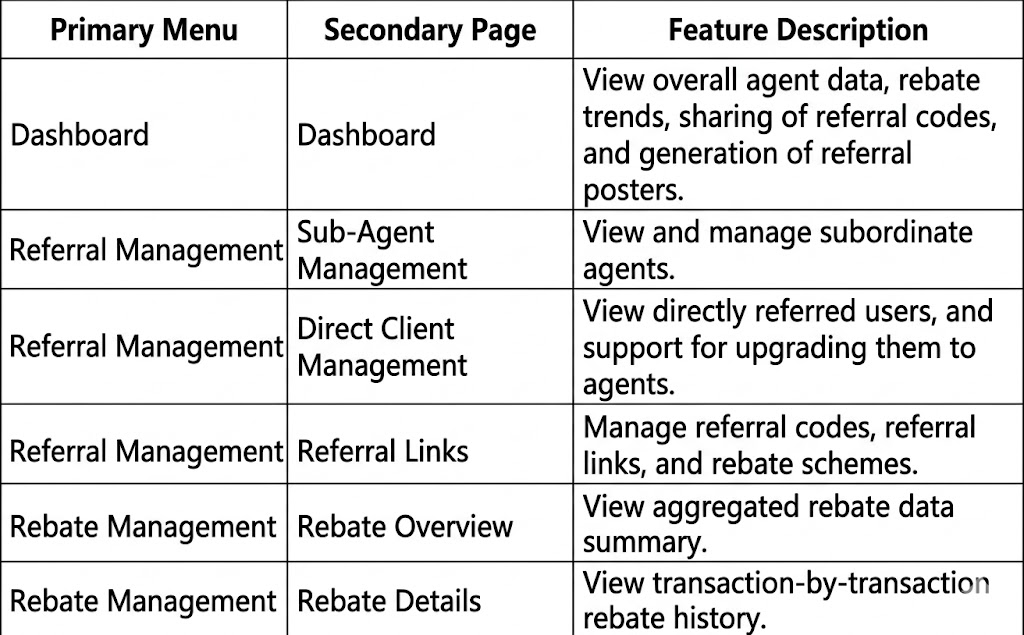
Core Terms Explained
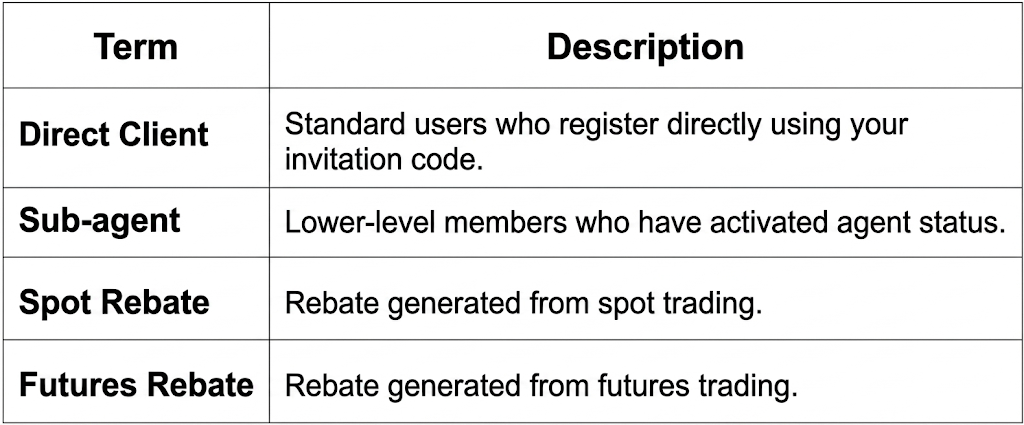
Key Points of Super Rebate Rules
Users registered through your referral link are initially classified as Direct Clients.
Assume your total rebate ratio is 50%. When your superior sets your rebate ratio to 50%, they will also fix the rebate ratio that you can allocate to your sub-agents, for example, 40%. (This is designed to prevent malicious competition among agents, where one might set a higher ratio for subordinates to disrupt market order.)
- (1) When you do not plan to set up sub-agents: The 40% figure has nothing to do with you. You can freely allocate the total 50% ratio between yourself and your direct users.
- (2) Once you need to set up sub-agents: Since your superior set your total rebate at 50% while fixing your sub-agents' rebate ratio at 40%, the commission ratio you earn from this channel is fixed at 10% (50% - 40%).
Similarly, when you set up your sub-agent (child node), their total rebate ratio is fixed at 40% (you don't need to configure this). However, you need to set the rebate ratio they can allocate to their sub-agents—for example, 20%. The remaining 20% is the commission ratio that your sub-agent (child node) can earn from their own channel.
How to Get a Referral Link
Go to the Referral Management > Referral Links page to add or edit referral code schemes.
- Click Add New in the top right corner.
- Set the invitee's Spot rebate ratio and Futures rebate ratio.
- Set the referral code.
- Fill in the remarks for easy differentiation between different channels.
- If needed, check "Set as Default Referral Code".
- Click Confirm to submit.
How to Activate Sub-agents
The agent activation portal is located on the Referral Management > Direct Client Management page.
- Enter the Direct Client Management page.
- Find the target user by filtering via UID or date.
- Click Upgrade in the operation column corresponding to the user.
- In the pop-up window, fill in the Agent Name, Sub-agent Spot Rebate Ratio, Sub-agent Futures Rebate Ratio, and Remarks.
- Submit after setting the ratios within the system-allowed range.
- Once successfully submitted, the user's agent activation is complete.
Detailed Page Explanations
1. Dashboard
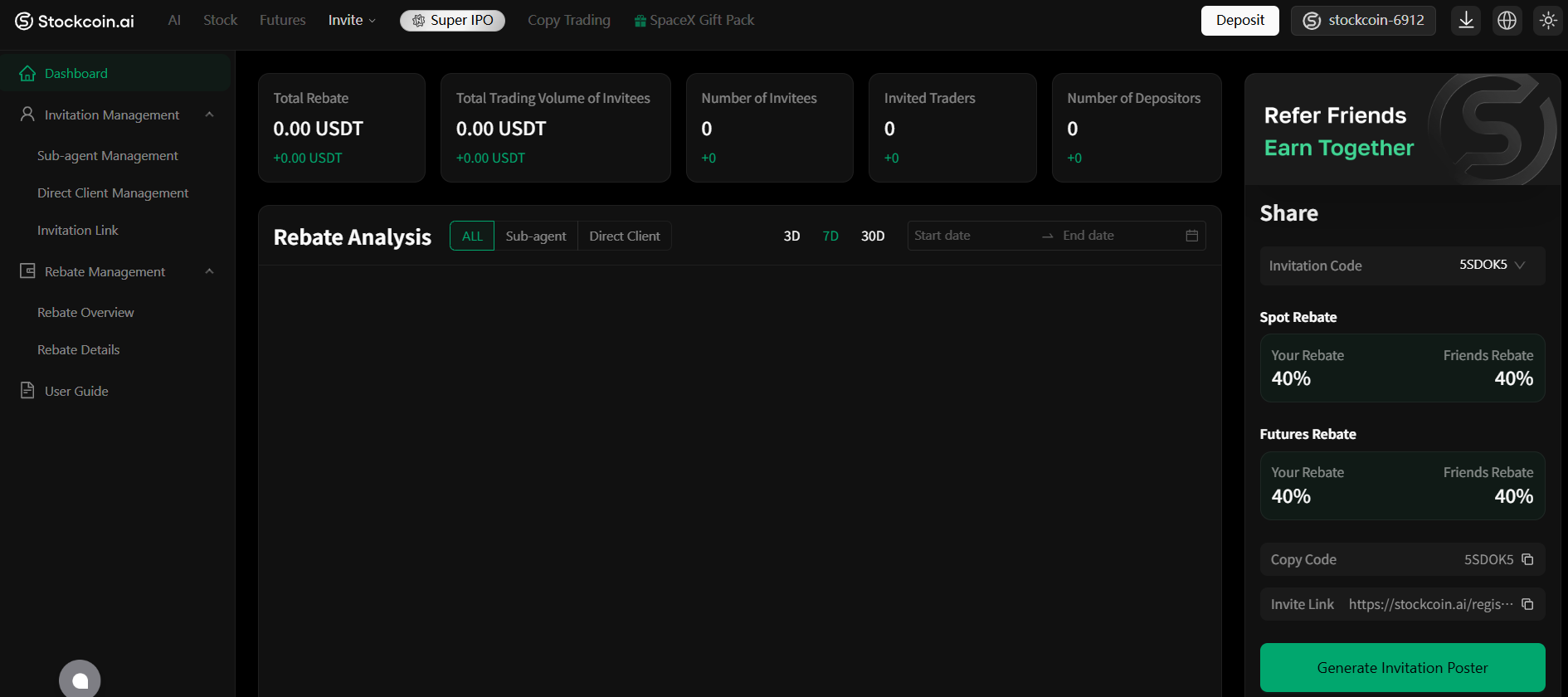
- Dashboard Page: Displays core data cards at the top, a rebate analysis chart in the middle, and the referral code sharing section on the right.
- View metrics such as Total Rebates, Total Trading Volume of Invitees, Number of Invited Users, and Number of Depositing Users.
- View rebate trend analysis, with options to toggle between All, Sub-agent, and Direct User data.
- Copy referral codes, copy referral links, and generate referral posters.
2. Sub-agent Management
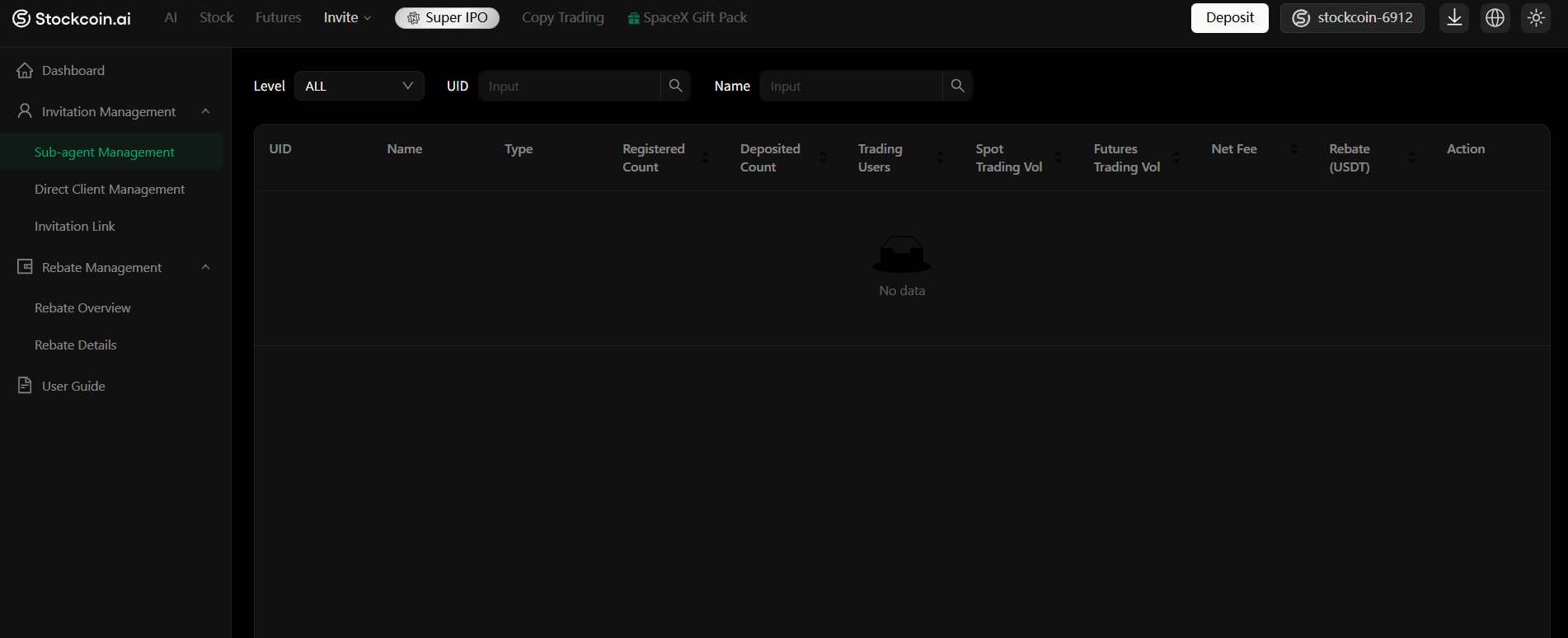
- Sub-agent Management Page: Supports filtering by Level, UID, and Username. View the registration, deposit, trading, and rebate performance of sub-agents.
3. Direct Client Management
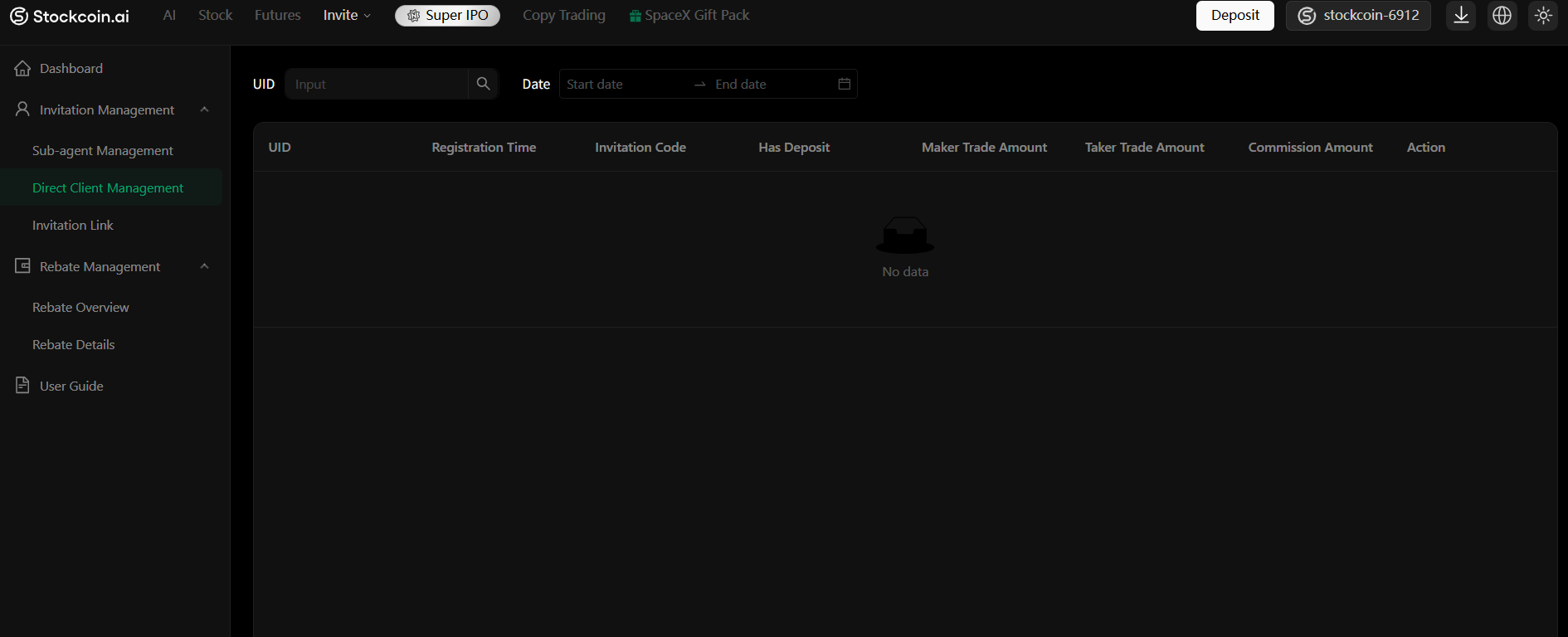
- Direct Client Management Page: Supports filtering directly invited users via UID and date, and performing agent upgrade operations when data is available.
4. Referral Links
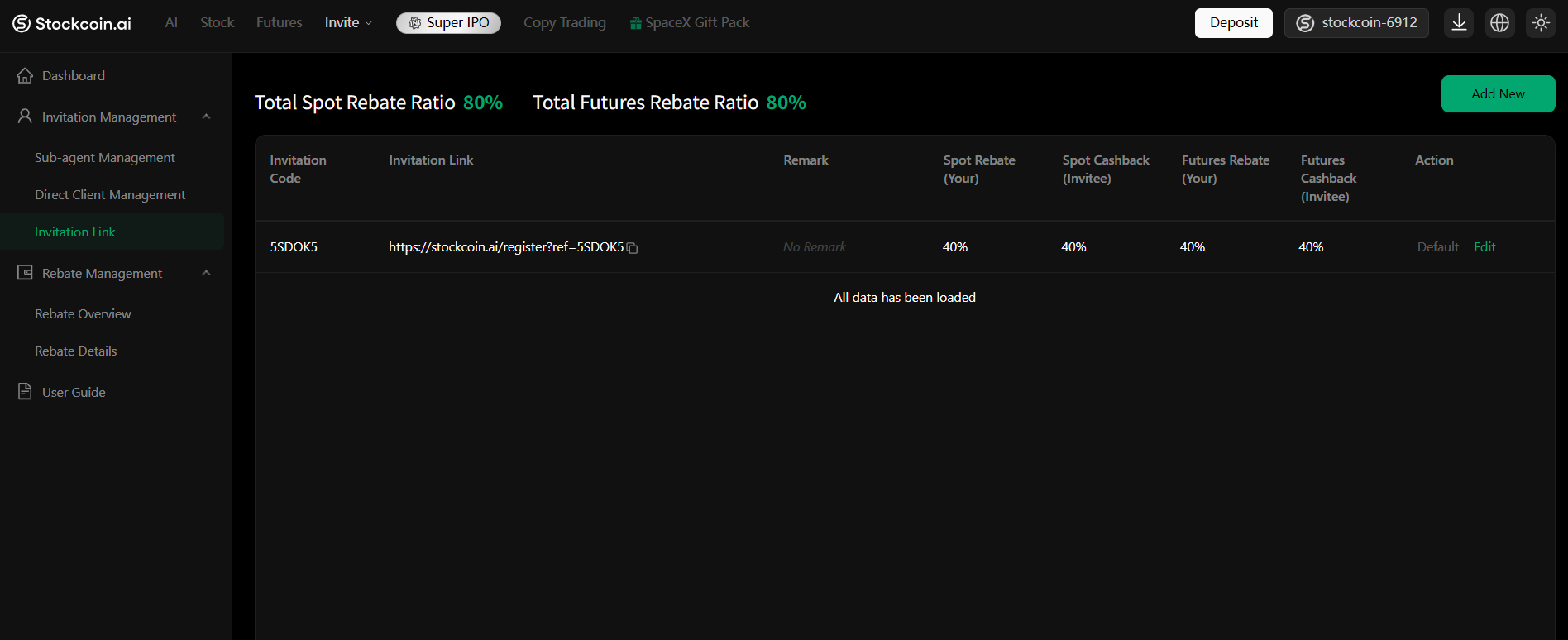
- Referral Links Page: Displays the total rebate ratios for Spot and Futures, and supports editing invitee rebates, invitation codes, remarks, and default invitation codes.
5. Rebate Overview
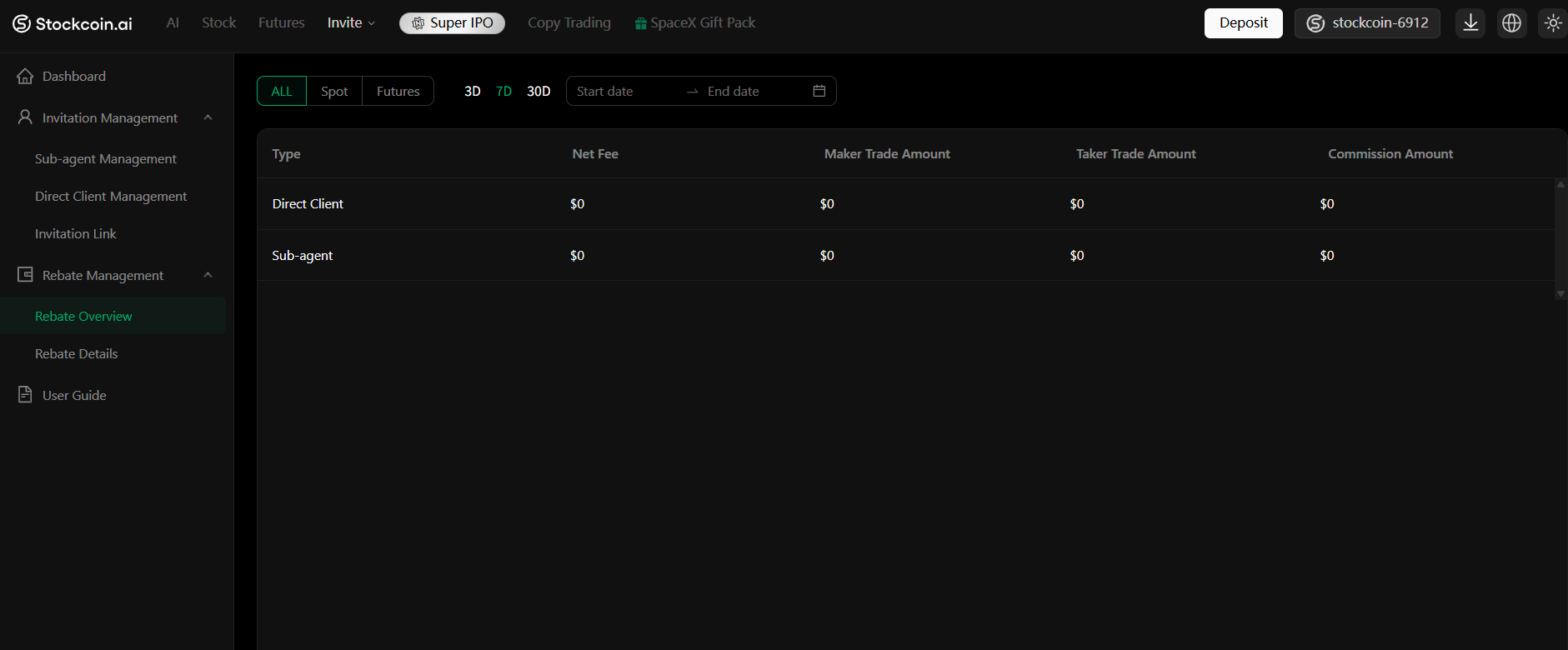
- Rebate Overview Page: View the aggregated rebate performance brought by direct users and sub-agents, filterable by business type and date range.
6. Rebate Details
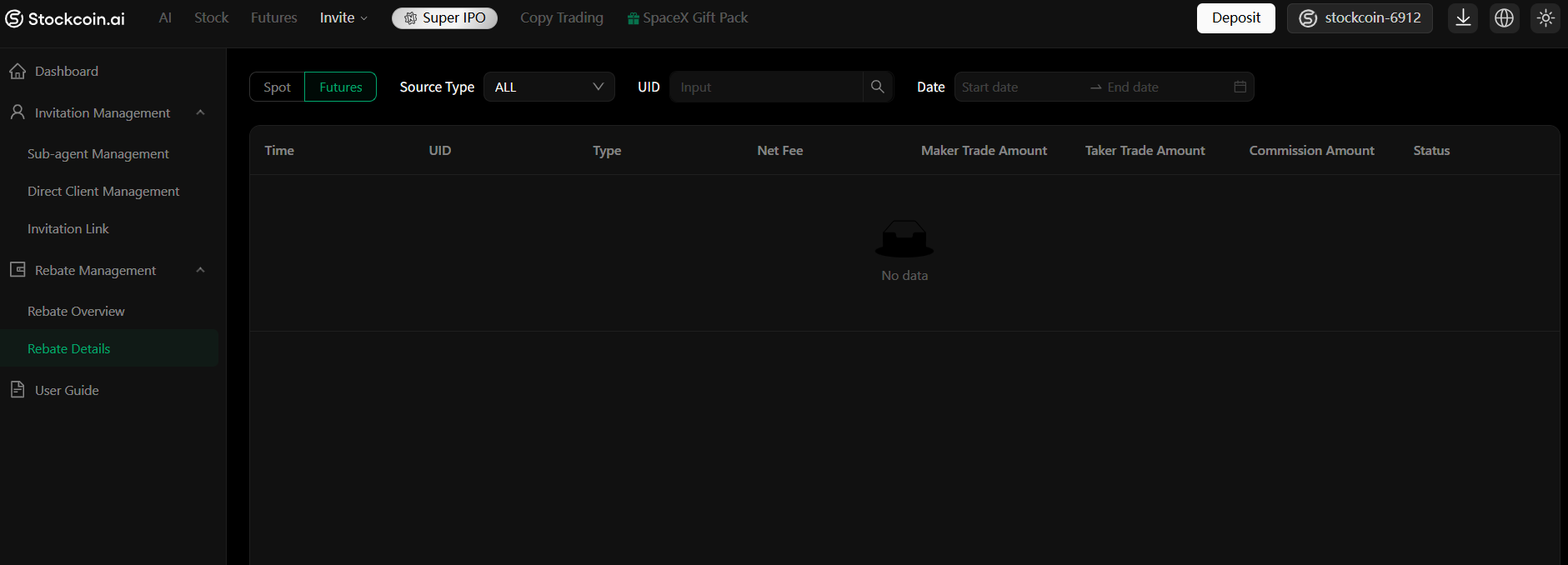
- Rebate Details Page: View transaction-by-transaction rebate records and distribution statuses, filterable by time, UID, and source type.
Usage Recommendations
- It is recommended to use different referral codes for different channels and fill in clear remarks.
- Please double-check and confirm Spot and Futures rebates separately to avoid configuring only one of them.
- It is advised to keep the default referral code for your primary promotional channel.
- Before adjusting ratios, always confirm the current allocatable range before saving settings.
- To track specific rebate sources, prioritize checking the Rebate Details page.